The efforts to acquire new customers should not be nullified by losing customers. The trend goes from customers coming on the website or app to becoming dormant and getting lost. Retaining dormant customers thus plays a crucial role.The users should be engaged by multiple campaigns or offers that help them realize the value of the brand they had intended to be associated with. One of the most effective ways of capturing the attention of the customer is by showcasing the memories they have spent with the brand. These can be either the last video the user watched or the last purchase the user made.In this article, we will create a Catalog, a Recommendation, and a Push campaign to target users based on their past experience, such as users who have made purchases in the last 30 days.
The time range can differ depending on your retention period. If you need a longer retention period of more than 30 days, contact your account manager.
Go to Content > Recommendations from the left navigation. The Recommendations page is displayed.
Click + Create recommendation. The Create recommendation page is displayed.
Under Filter by user action and item attributes, click the User Actions model.
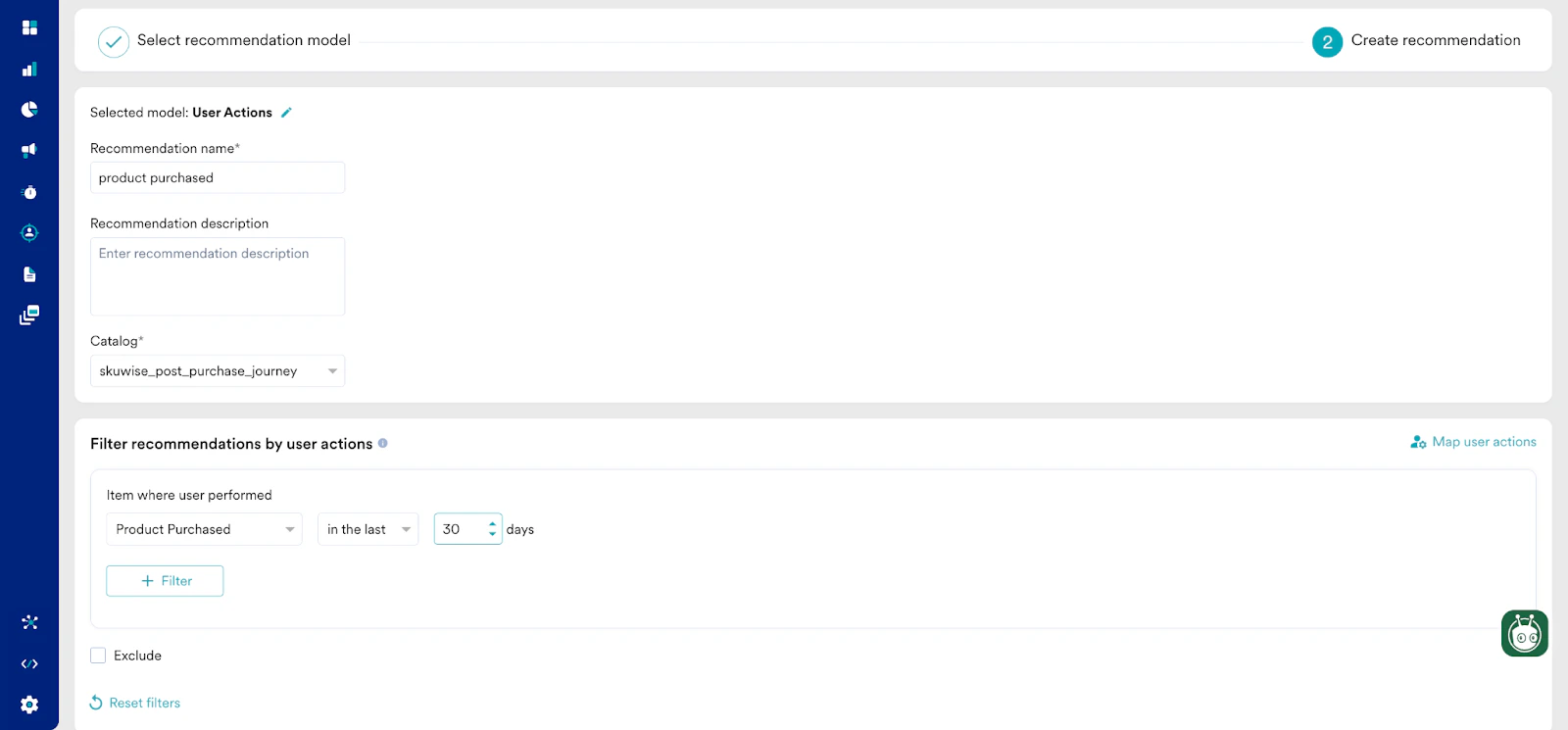
Click Next. It takes you to the second step “Create recommendation”. Enter the following details:
Recommendation name: Enter a name for the recommendation. For example, “product purchased”. This will be the name through which you will refer the output of this recommendation model.
Recommendation description: Enter a description for the recommendation. This description will help you understand what the model is aimed at.
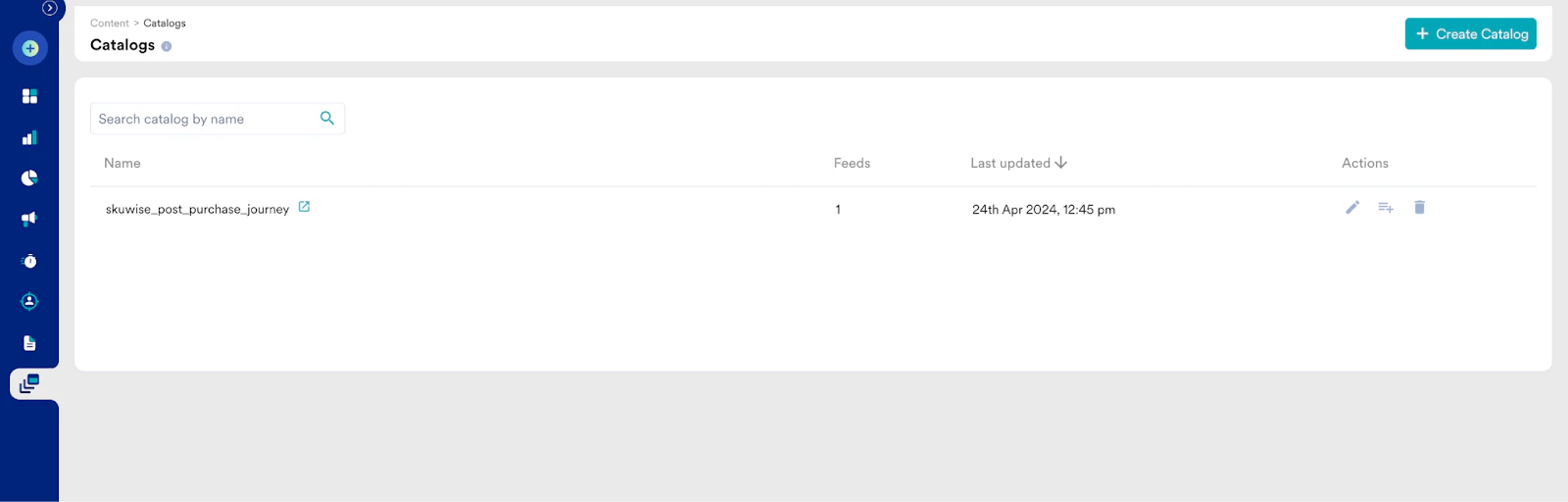
Catalog: Select the “skuwise_post_purchase_journey” catalog.
Click Create to save the changes and run the model.
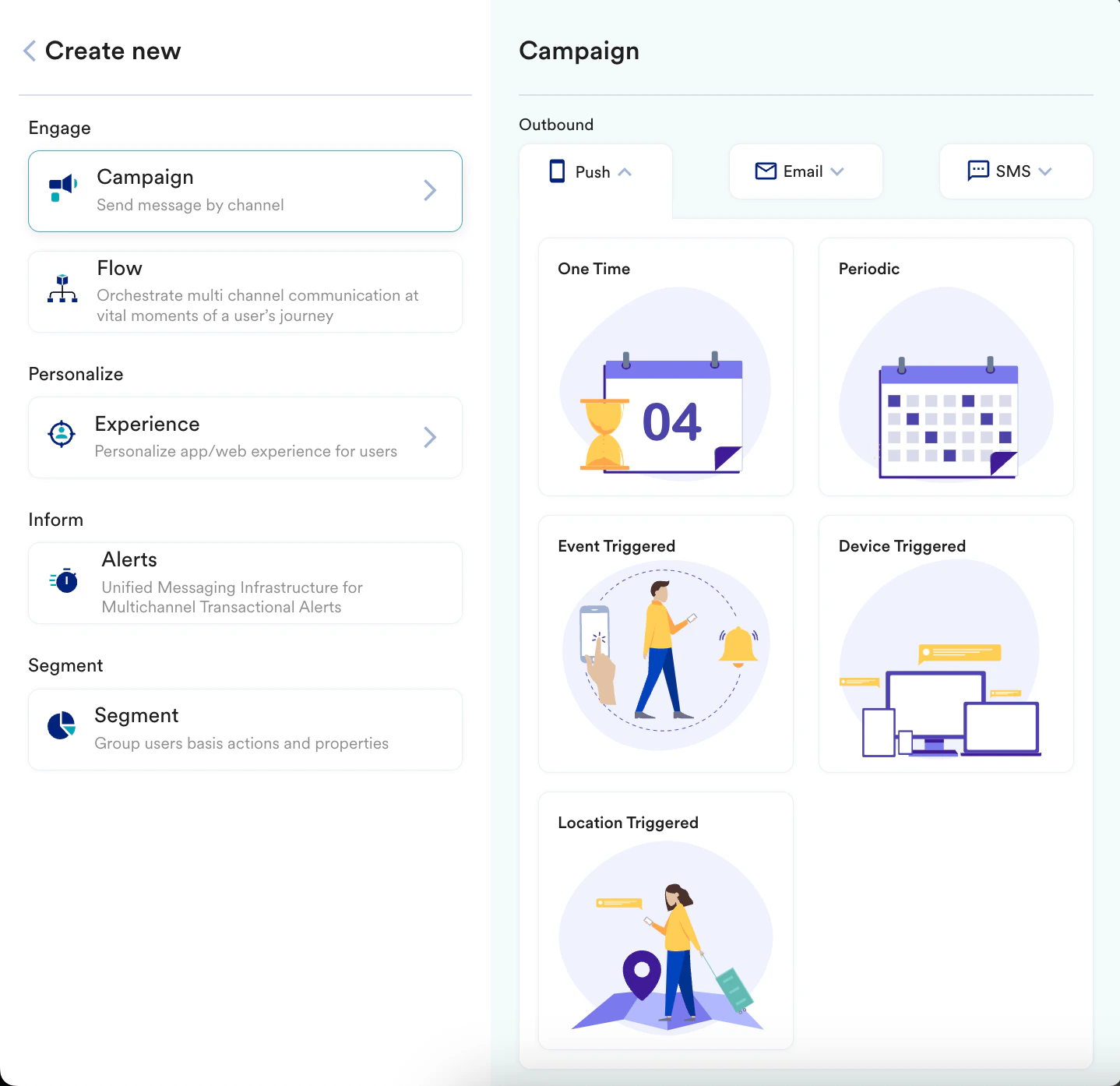
Navigate to the sidebar on the left and click Engage > Campaigns and click + Create campaign or click + Create new > Campaign.
Under Outbound, select Push and then select the delivery type.
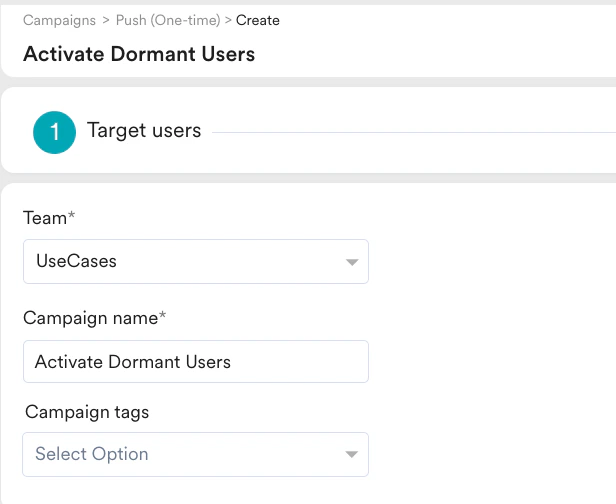
You are taken to the first step “Target users” of defining your campaign.
Enter the following details:
Team: Select a team if your organization has teams enabled for your account. For example, “UseCases”. For more information, refer to Teams in MoEngage.
Campaign name: Enter a name for the campaign. For example, “Activate Dormant Users”.
Campaign tags: Select the required campaign tags.
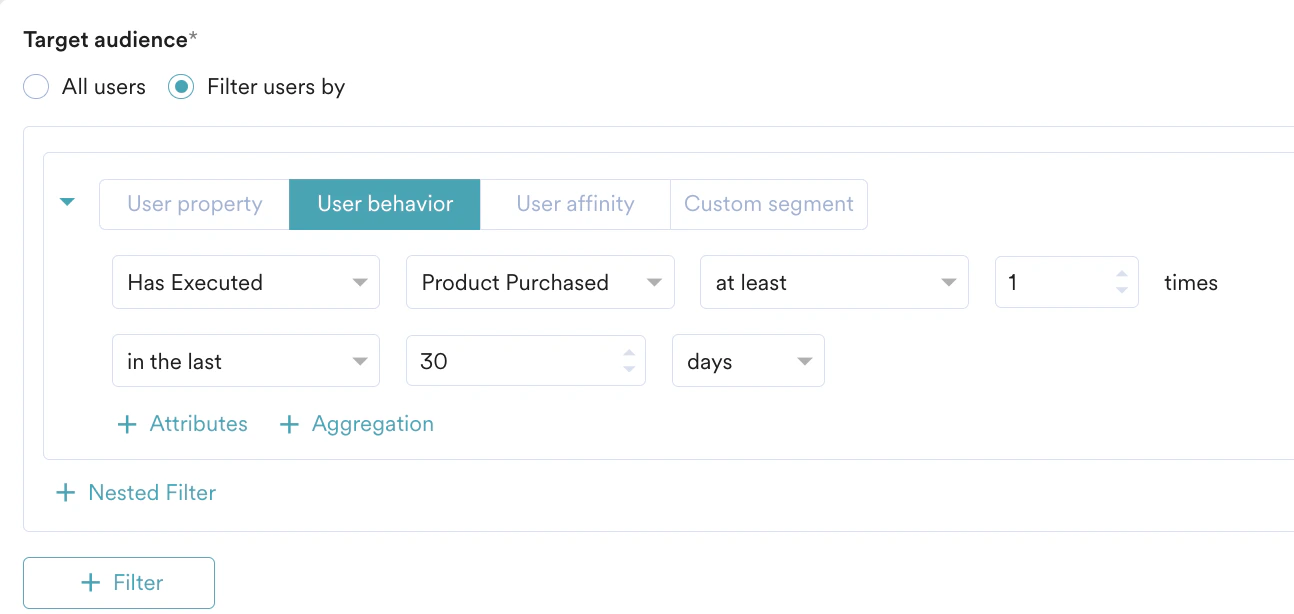
In the Target Audience section, select the target audience as shown in the image below:
In the Target Platforms section, select Android.
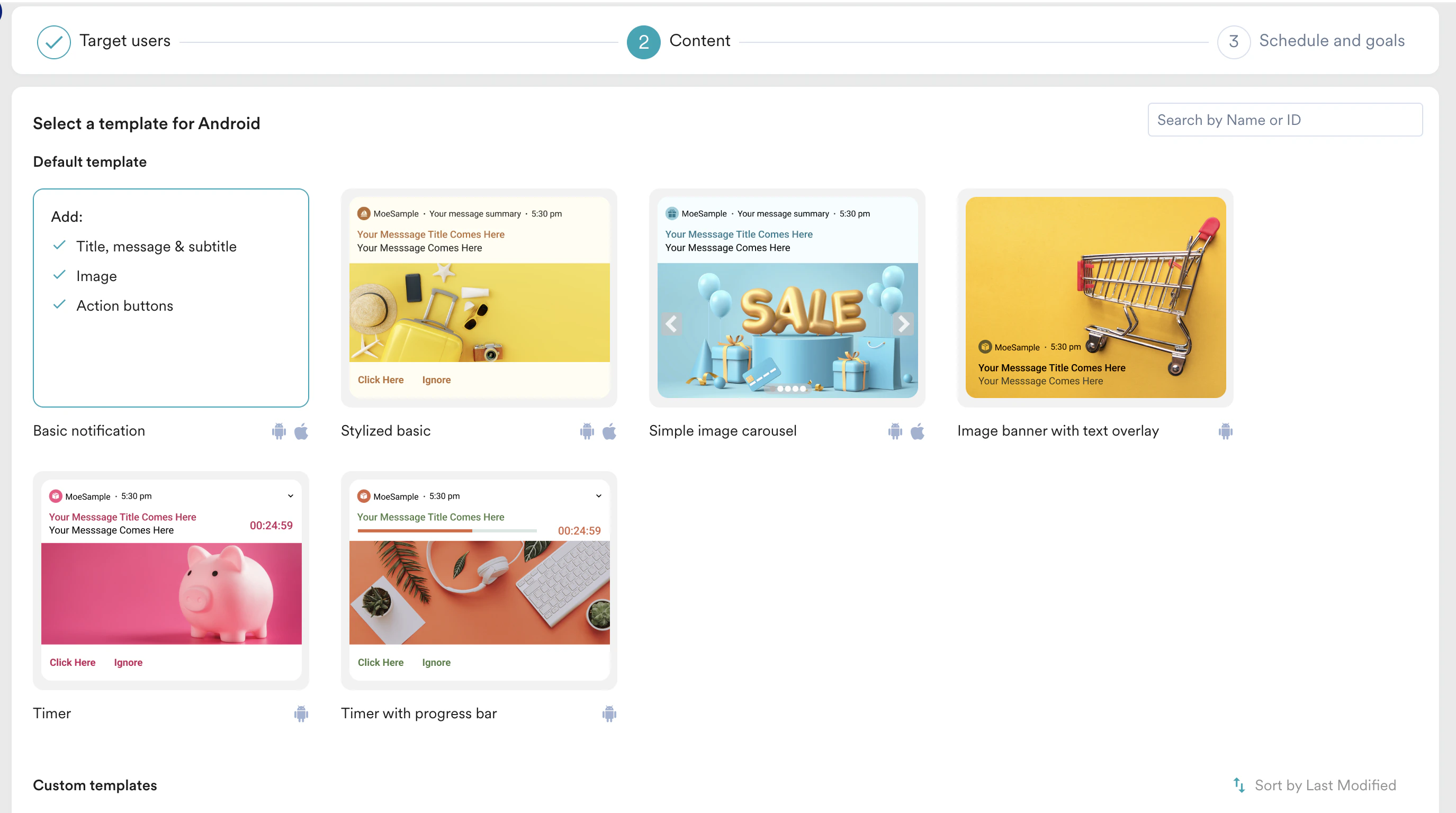
Click Next to move to the second step “Content” where you can define the content that will go into your Push campaign.
Select the template that you like to go with. For our example, select Basic notification.
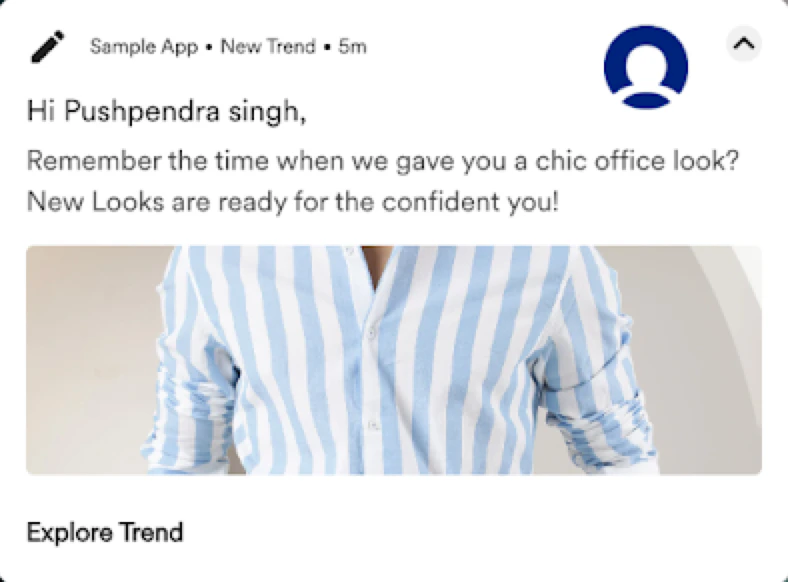
Enter the required content for the campaign. For example:
Message title
Message
Message summary
Make use of the Catalog to display the memory images.
Carousels work best when there are multiple memories in hand. To set them up, you can use the data to be fetched from the product Catalog and displayed to the user.
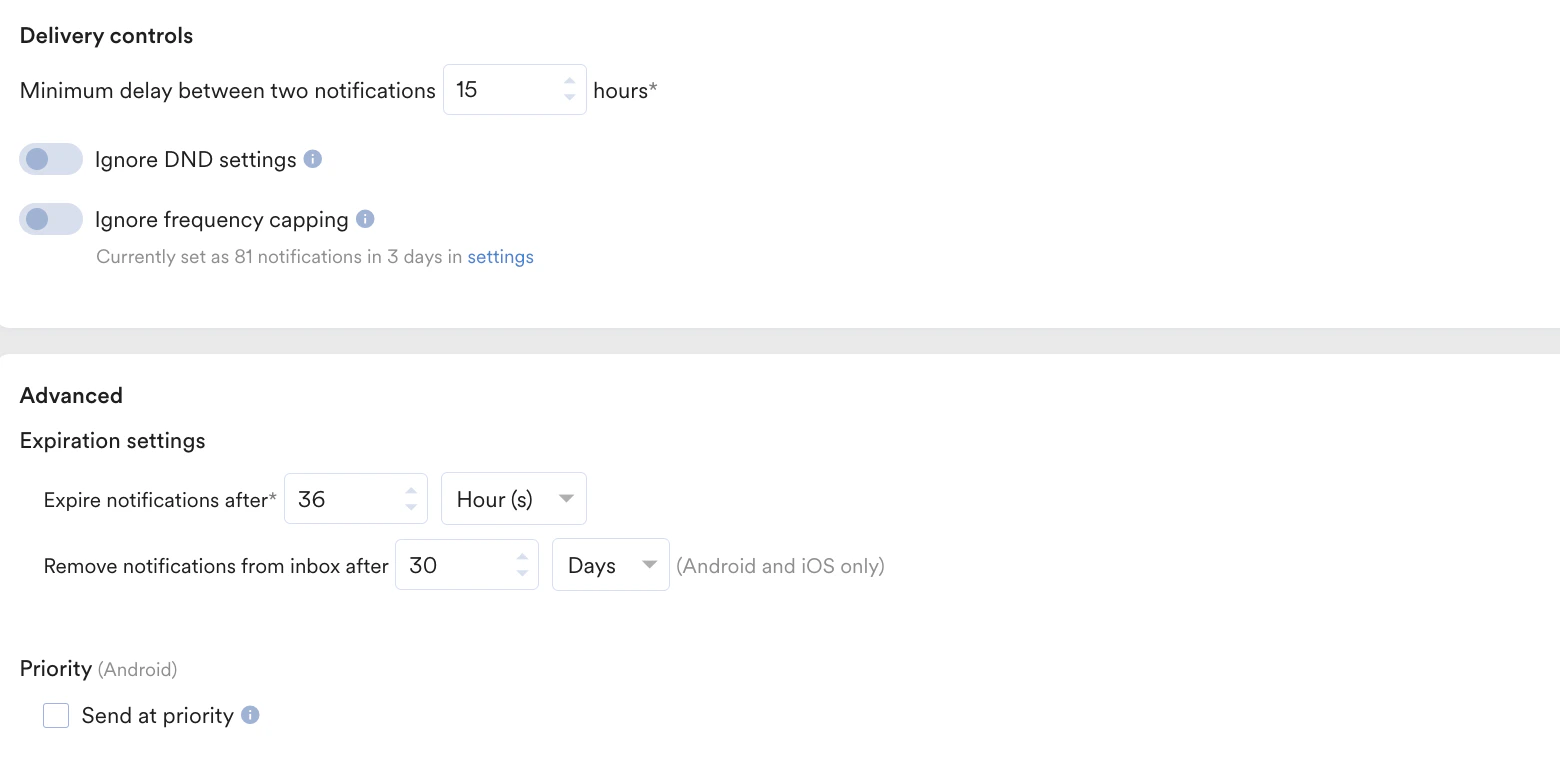
Click Next to move to the third step “Schedule and goals” where you can define the schedule and goal of your campaign.
In this use case, we created a Catalog, a Recommendation, and a Push campaign to target users using their past experience such as users who have made purchases before 30 days.



 Carousels work best when there are multiple memories in hand. To set them up, you can use the data to be fetched from the product Catalog and displayed to the user.